
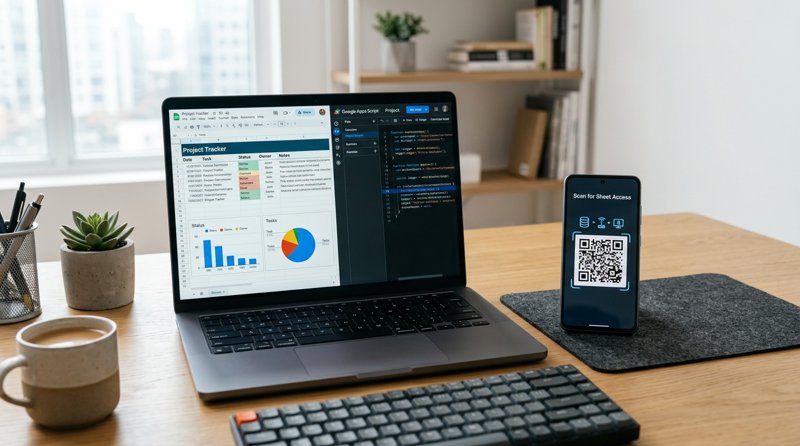
Looking to automate appointment reminders, booking confirmations, or customer notifications directly from your spreadsheets? In this comprehensive guide, we will show you how to send sms from google scripts code with free sms gateway service alternatives and budget-friendly developer tools that bypass complex carrier registrations.
The Challenge of Automating SMS from Google Sheets
For local businesses like dental clinics, auto repair shops, language schools, and beauty salons, keeping clients informed is the single best way to eliminate no-shows and streamline operations. Google Sheets is often the default tool for managing these customer lists and schedules because it is flexible, accessible, and completely free.
However, when business owners search for how to send sms from google scripts code with free sms gateway service options, they quickly run into major technical and financial roadblocks. Traditional corporate platforms like Twilio, Plivo, or MessageBird are designed for massive enterprise tech stacks. They require complex developer setups, mandatory business verification, and strict A2P 10DLC registration processes that can take weeks to get approved. On top of that, they charge high monthly platform fees and bill you per 160-character segment, meaning a single long text message can cost you double or triple the advertised rate.
Historically, developers used "Email-to-SMS" gateways as a free workaround, but modern telecom carriers block these messages as spam almost instantly. To solve this, a modern Android SMS gateway like MySMSGate offers the perfect middle ground: you write a simple Google script that sends messages directly through your own Android phone and SIM card. You get the reliability of sending from your own recognizable business number, without the enterprise price tag or carrier approval headaches.
Step 1: Create Your Free MySMSGate Account
To begin, you need a reliable SMS gateway backend that can receive API requests from your Google Apps Script and forward them to a mobile device. Traditional setups require expensive developer accounts, but MySMSGate offers an affordable, developer-friendly alternative with no contracts, no monthly subscription fees, and a flat rate of just $0.02 per SMS.
Follow these steps to set up your gateway account:
- Go to the MySMSGate registration page and create your free account.
- Once logged in, navigate to your web dashboard. Here you will find your unique API Key. Copy this key, as you will need to paste it into your Google Apps Script code later.
- Check your balance. MySMSGate operates on a transparent pay-as-you-go model with a flat $0.02 charge per message. Unlike other services, there are no hidden fees, and you are automatically refunded if an SMS fails to send.
Step 2: Connect Your Android Phone via QR Code
MySMSGate turns your own Android phone (or multiple phones across different business branches) into a dedicated SMS gateway. This means your messages are sent using your existing SIM card and cellular plan, ensuring your customers receive texts from a local number they already recognize.
To link your phone to your dashboard:
- Download and install the official MySMSGate Android app on your phone. The app also functions as a full-featured SMS messenger.
- Open the app on your phone and tap the option to link a new device.
- Scan the QR code displayed on your MySMSGate web dashboard. Your phone will instantly connect to your account—no typing long API keys or configuring complex server settings.
- Ensure the app has permission to run in the background. MySMSGate features an auto wake-up function that uses push notifications to keep the phone active even when it is in sleep mode.
If you use a dual-SIM phone, you can configure which SIM slot to send from directly from your dashboard or via your script payload, giving you complete control over your cellular routing.
Step 3: Set Up Your Google Sheet for SMS Automation
With your gateway active, you need to structure your Google Sheet to hold your customer data and track message delivery status. Let's create a clean, simple layout that our script can read easily.
Open a new Google Sheet and set up the following column headers in the first row:
- Column A: Customer Name
- Column B: Phone Number (always include the country code, e.g., +447123456789 or +12025550143)
- Column C: Message (the custom text message you want to send)
- Column D: Status (leave this blank; our script will write "Sent" or "Failed" here)
Fill in a few test rows with your own phone number to test the integration before running it on your entire client list.
Step 4: Write the Google Apps Script Code
Now, let's write the code that connects Google Sheets to the MySMSGate REST API. This script will loop through your spreadsheet rows, identify messages that haven't been sent yet, and dispatch them through your connected Android phone.
To add the script to your Google Sheet:
- In your Google Sheet, click on Extensions in the top menu, then select Apps Script.
- Delete any default code in the editor and paste the following Google Apps Script code:
function sendSMSFromSheet() {
  var sheet = SpreadsheetApp.getActiveSpreadsheet().getActiveSheet();
  var rows = sheet.getDataRange().getValues();

  // Replace with your actual MySMSGate API Key
  var apiKey = "YOUR_MYSMSGATE_API_KEY";

  // Loop through rows, starting at index 1 to skip the header row
  for (var i = 1; i < rows.length; i++) {
    var name = rows[i][0];
    var phoneNumber = rows[i][1];
    var messageText = rows[i][2];
    var status = rows[i][3];

    // Only send if the phone number is not empty and status is not 'Sent'
    if (phoneNumber !== "" && status !== "Sent") {
      var payload = {
        "api_key": apiKey,
        "to": phoneNumber,
        "message": messageText
      };

      var options = {
        "method": "post",
        "contentType": "application/json",
        "payload": JSON.stringify(payload),
        "muteHttpExceptions": true
      };

      try {
        // Call the MySMSGate REST API endpoint
        var response = UrlFetchApp.fetch("https://mysmsgate.net/api/v1/send", options);
        var json = JSON.parse(response.getContentText());

        if (response.getResponseCode() == 200 && json.status === "success") {
          // Update status column to 'Sent'
          sheet.getRange(i + 1, 4).setValue("Sent");
        } else {
          // Mark as failed and record the error message
          var errorMsg = json.message || "API Error";
          sheet.getRange(i + 1, 4).setValue("Failed: " + errorMsg);
        }
      } catch (e) {
        sheet.getRange(i + 1, 4).setValue("Error: " + e.toString());
      }

      // Small pause to prevent hitting API rate limits
      Utilities.sleep(1000);
    }
  }
}
Make sure to replace YOUR_MYSMSGATE_API_KEY with the actual key from your dashboard, then click the disk icon to save your project.
Step 5: Test and Automate Your SMS Dispatch
Before automating the system, it is crucial to run a manual test to verify that Google Apps Script can successfully communicate with your Android device via our cheapest SMS API solution.
- In the Google Apps Script editor, make sure the
sendSMSFromSheetfunction is selected in the dropdown menu. - Click the Run button. Google will prompt you to grant permissions for the script to access your spreadsheet and make external web requests. Grant these permissions.
- Look at your Google Sheet. If successful, the Status column for your test row will change to "Sent", and you will receive the text message on your phone within seconds.
To make this system fully automated (for example, to send out appointment reminders every morning), you can set up a time-driven trigger in Google Apps Script:
- Click on the clock icon (Triggers) in the left-hand sidebar of the Apps Script editor.
- Click Add Trigger in the bottom right corner.
- Set the function to run to
sendSMSFromSheet. - Choose the event source as Time-driven.
- Configure it to run daily (e.g., every morning between 8 AM and 9 AM) or hourly, depending on your business needs.
For business owners who want to run marketing or announcement campaigns without writing any code at all, you can search for resources like "comment envoyer des campagnes sms sans utiliser de code ?" or simply use the MySMSGate web dashboard, which allows you to import lists and send bulk campaigns directly from your browser.
Comparing MySMSGate to Traditional SMS Gateways
When selecting an SMS integration path, it is important to understand the trade-offs between completely free services, traditional enterprise APIs, and an Android-based gateway model. The table below outlines how MySMSGate compares to other options on the market:
| Feature | MySMSGate | Traditional APIs (Twilio, Plivo) | "Free" Email-to-SMS Gateways |
|---|---|---|---|
| Cost per SMS | Flat $0.02 (no segment surcharges) | $0.05 - $0.08 + billing per 160-char segment | Free (but highly unreliable) |
| Monthly Retainer | $0.00 (Pay-as-you-go) | Requires monthly phone number lease | None |
| 10DLC / Brand Registration | Not required (uses your own SIM card) | Mandatory (takes weeks, expensive setup) | Not applicable |
| Sender Identity | Your own mobile number (recognized by clients) | Random shortcodes or unfamiliar virtual numbers | Usually blocked instantly by carrier spam filters |
| Failed Messages | Auto-refunded to your balance | Charged anyway | Silently discarded |
| Setup Time | Under 5 minutes (QR code scan) | Days to weeks of compliance reviews | Variable (requires carrier-specific domains) |
While some developers search for the "best sms api for mobile app integration 2026" or specialized tools like "best simple voice sms api", small local businesses benefit most from a practical, low-overhead solution. MySMSGate eliminates the barriers of corporate registration, allowing you to start sending alerts in minutes using the hardware you already own.
Frequently Asked Questions (FAQ)
Can I use a completely free SMS gateway with Google Scripts?
While some legacy tutorials suggest using free Email-to-SMS gateways (like sending an email to [email protected]), modern telecom carriers have heavily restricted these gateways to combat spam. Messages sent through these free methods are usually blocked, delayed, or stripped of formatting. MySMSGate provides a highly reliable, low-cost alternative at just $0.02 per message with no monthly platform fees, giving you enterprise-grade delivery rates through your own phone.
Why does MySMSGate require an Android phone?
By routing messages through an Android app installed on your physical phone, MySMSGate acts as a bridge between your code and your cellular carrier. This allows you to send text messages from your actual business number without having to register a virtual brand, lease expensive shortcodes, or comply with complex international carrier rules.
Do I need to register for 10DLC or carrier approvals?
No. Because your messages are sent directly from your personal or business SIM card, you do not need to register for 10DLC (10-Digit Long Code) or undergo any carrier approval processes. This makes it the ideal solution for local businesses operating outside the United States who want to quickly set up transactional alerts without red tape.
What happens if an SMS fails to send?
If a message fails to deliver due to network issues, an invalid phone number, or a disconnected device, MySMSGate automatically detects the failure and refunds the cost of that message back to your account balance instantly. You only pay for successful transmissions.


Comments (0)
Be the first to comment!