
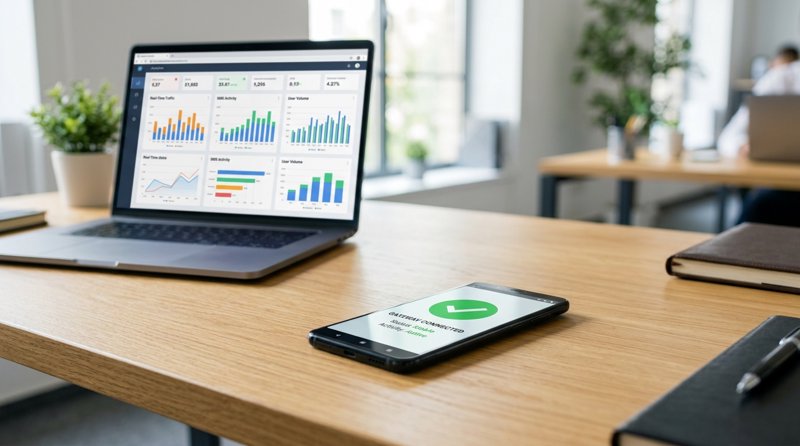
If you run an active service business like a clinic, repair shop, or tutoring school, a disconnected SMS gateway means missed appointment reminders, delayed notifications, and frustrated customers. When using an Android-based SMS gateway, the operating system's aggressive battery-saving features can silently kill background apps, causing your gateway to go offline. This comprehensive step-by-step tutorial shows you exactly how to setup sms gate to not disconnect, ensuring 100% uptime for your operational messaging.
Why Do Android SMS Gateways Keep Disconnecting?
To understand how to keep your gateway online, you must first understand why it disconnects. Modern Android operating systems are designed to maximize battery life and minimize data usage. To achieve this, Google introduced features like Doze Mode and App Standby. While these features are great for casual users, they are highly disruptive for an "android sms" messaging and communication platform that must remain active 24/7 to process incoming and outgoing messages.
When your phone sits idle on a desk, Android enters a deep sleep state. It restricts network access and defers background syncs. If your SMS gateway app does not have the correct permissions, Android will force-close its background processes. When you try to trigger a message via your backend REST API, the request fails because the device is unreachable. By applying the configurations outlined below, you can bypass these limitations and maintain a persistent, reliable connection without paying for expensive, complex carrier integrations.
Step 1: Disable Battery Optimization for the SMS Gateway App
The single most common cause of disconnection is Android's battery optimization engine. By default, Android places apps into an optimized state, meaning their background execution is throttled when the device is not actively in use.
To disable battery optimization and ensure your SMS gateway remains online, follow these steps:
- Open the Settings app on your Android device.
- Navigate to Apps or Apps & Notifications.
- Find and tap on your SMS gateway app (such as the MySMSGate app).
- Tap on Battery or Battery Usage.
- Look for the Battery Optimization or Background Restriction setting.
- Change the setting from "Optimized" or "Optimized (Recommended)" to Unrestricted or Don't Optimize.
By setting the application to Unrestricted, you instruct the Android system to let the app run continuously in the background, even when the phone is idle or sleep mode is active. This is a foundational step in learning how to setup sms gate to not disconnect.
Manufacturer-Specific Settings (Samsung, Xiaomi, Huawei)
Many manufacturers add their own custom battery-saving layers on top of stock Android. For example, Samsung devices have a feature called "Sleeping Apps." You must ensure your gateway app is added to the Never Sleeping Apps list. On Xiaomi devices running MIUI/HyperOS, you need to open the Security app, go to Battery, tap App Battery Saver, select your app, and choose No Restrictions. If you skip these brand-specific steps, the OS will still kill your background SMS gateway.
Step 2: Enable Unrestricted Background Data and Wi-Fi Keep-Alive
An SMS gateway needs a constant internet connection to receive API commands from your web dashboard or backend. If Android cuts off network access to save data or power, your gateway will disconnect.
To prevent Android from restricting network access, configure the following settings:
- Go to Settings > Apps and select your SMS gateway app.
- Tap on Mobile Data & Wi-Fi (or Data Usage).
- Toggle on Background Data (allows the app to use mobile data in the background).
- Toggle on Unrestricted Data Usage (allows the app to use data even when Data Saver mode is turned on).
Additionally, you must ensure your Wi-Fi connection does not go to sleep when the phone screen is off. Go to Settings > Network & Internet > Wi-Fi > Wi-Fi Preferences and look for an option like "Keep Wi-Fi on during sleep" (if available on your Android version), or disable any automatic Wi-Fi sleep schedules.
Step 3: Configure Auto Wake-Up and Push Notifications
Even with battery optimization disabled, some aggressive Android systems may still occasionally pause background processes. To combat this, modern platforms like MySMSGate utilize silent push notifications to actively wake up the Android app whenever an SMS needs to be sent.
When you send a request to the SMS API, MySMSGate sends a high-priority push notification via Google Firebase Cloud Messaging (FCM). This notification acts as an instant wake-up call, forcing the Android OS to allocate CPU cycles to the app so it can process and send the SMS immediately. To make sure this works, you must verify your notification settings:
- Go to Settings > Apps > MySMSGate.
- Tap on Notifications.
- Ensure that All Notifications are enabled.
- Make sure that background notifications are not blocked or set to silent.
With high-priority push notifications configured, your phone stays connected and responsive even in deep sleep mode, ensuring zero-delay message delivery.
Step 4: Lock the App in the Recent Apps Screen
When you open multiple apps on your phone, Android keeps them in the "Recent Apps" or "Overview" screen. If the device runs low on RAM, it will start closing the oldest apps in this list. You can manually lock your SMS gateway app in the system memory so that Android never automatically closes it.
To lock the app in RAM:
- Swipe up from the bottom of your screen (or tap the physical square button) to open the Recent Apps screen.
- Find the preview card for your SMS gateway app.
- Tap the app icon at the top of the card or long-press the card.
- Select the Lock icon or tap Lock this app.
Once locked, a small padlock icon will appear next to the app. Even if you tap "Clear All" in your recent apps, the system will keep your SMS gateway running in memory, preventing accidental disconnections.
Step 5: Set Up Real-Time Delivery Tracking and Webhooks
While configuring the physical phone is crucial, you also need programmatic visibility. If a device loses power or drops its Wi-Fi connection, your application needs to know instantly. The best way to handle this is by monitoring real-time delivery tracking via webhooks.
When you use MySMSGate, every outgoing message triggers a status update. If a message fails because the device is offline, our system instantly updates the status and triggers a webhook payload to your backend. Best of all, MySMSGate features an automatic failed SMS refund policy: if a message fails to send due to a disconnected device, your balance is auto-refunded instantly.
Here is a simple Python example of how you can send a message using our low cost sms api and handle the payload:
import requests

url = "https://mysmsgate.net/api/v1/send"
payload = {
    "to": "+447700900077",
    "message": "Your appointment is confirmed for tomorrow at 10:00 AM.",
    "device_id": "your_device_id_here",
    "sim_slot": 1
}
headers = {
    "Authorization": "Bearer YOUR_API_KEY",
    "Content-Type": "application/json"
}

response = requests.post(url, json=payload, headers=headers)
print(response.json())
By integrating this simple REST API endpoint into your booking system, you can easily automate your reminders. To learn more about setting up your Android device as an API gateway, check out our guide on how to send SMS from an Android phone via API.
Why Choose MySMSGate Over Traditional Gateways?
Many businesses start by looking at major providers like Twilio or MessageBird, only to be overwhelmed by high costs, complex carrier approvals, and strict 10DLC registration requirements. If you are a local service business outside the US, registering your brand and waiting weeks for carrier approval is a massive headache. With MySMSGate, you bypass all A2P SMS registration requirements because you are sending messages through your own SIM card and phone number that your customers already recognize.
Let's compare the costs and features of MySMSGate against traditional SMS gateways and API providers:
| Feature / Cost | MySMSGate | Twilio | SMSGateway.me |
|---|---|---|---|
| Cost per SMS | $0.02 (Flat rate) | $0.05 - $0.08 + segment fees | Free tier / $9.99/mo premium |
| Billing Method | One flat charge per message | Billed per 160-char segment | Monthly subscription |
| 10DLC / Carrier Registration | No registration required | Strict registration & fees | No registration required |
| Setup Complexity | Scan QR code (instant) | Highly complex API setup | Manual API token entry |
| Multi-Device Support | Yes (unlimited devices) | No (virtual numbers only) | Limited |
| Failed Message Refund | Yes (automatic) | No (you pay for failed attempts) | No |
As shown in the table, MySMSGate offers a highly competitive, flat-rate alternative without the monthly subscription overhead of competitors like SMSGateway.me, or the hidden segment charges of Twilio. For a deeper breakdown of how we compare to other providers, read our detailed analysis of the cheapest SMS API for small businesses.
Frequently Asked Questions
Here are answers to the most common questions regarding Android SMS gateway connectivity, stability, and setup.
Why does my Android SMS gateway keep disconnecting when the screen is locked?
This is caused by Android's Doze Mode. When the screen is locked and the phone is stationary, the operating system limits network activity and background processes to save power. To prevent this, you must set the SMS gateway app's battery usage setting to 'Unrestricted' and enable unrestricted background data usage.
Does MySMSGate charge for failed messages if my phone goes offline?
No. Unlike traditional APIs like Twilio, which charge you for every API request regardless of whether the carrier delivers the message, MySMSGate features an automatic failed SMS refund. If your Android phone is offline and a message cannot be sent, your account balance is instantly refunded.
Can I use an old Android phone as a dedicated SMS gateway?
Yes, absolutely. In fact, we highly recommend using a dedicated, older Android device (running Android 8.0 or newer) that remains plugged into power and connected to a stable Wi-Fi network. This ensures that the device is never moved, has a constant power supply, and is dedicated solely to handling your business communications.
Do I need carrier approval or 10DLC registration to send SMS through MySMSGate?
No. Because MySMSGate routes messages directly through your own physical SIM card, your messages are sent as standard person-to-person (P2P) SMS. You do not need to undergo complex 10DLC brand registration, campaign verification, or wait for carrier approval, which is typically required for virtual number APIs.


Comments (0)
Be the first to comment!