
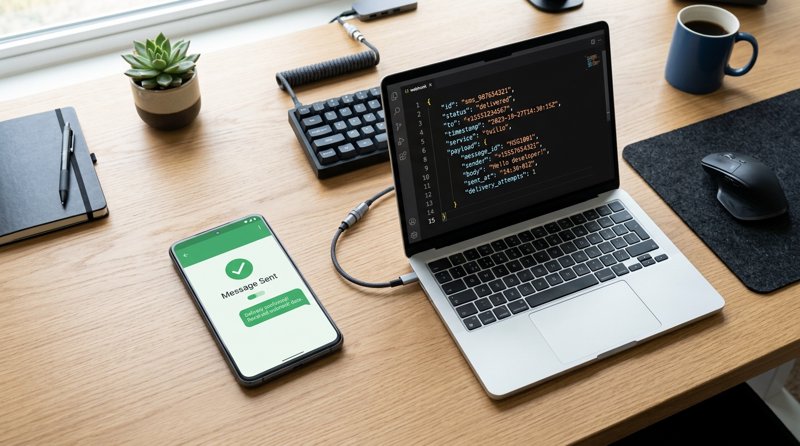
Setting up real-time notifications for your business—whether you are sending appointment confirmations for a clinic or order updates for a repair shop—requires a reliable way to track delivery status. Once you set up your callback URL, knowing exactly how to test sms once configured webhook is the critical next step to ensure your system processes delivery reports and incoming messages flawlessly.
Step 1: Set Up a Local Webhook Listener
Before you can test how your system handles SMS delivery reports, you need a public URL that can receive HTTP POST requests from your SMS gateway. If you are developing locally, your server running on localhost:3000 is not accessible to the open internet. To bridge this gap, you can use local tunneling tools like ngrok, LocalTunnel, or online webhook testing tools like Webhook.site.
For a quick, zero-configuration test, Webhook.site is highly recommended. It generates a unique, temporary public URL where you can watch incoming payloads in real time. If you prefer to test directly against your local application, run ngrok to expose your local port:
ngrok http 3000This command will generate a public HTTPS forwarding URL (e.g., https://your-subdomain.ngrok-free.app). You will append your webhook route to this URL—for example, https://your-subdomain.ngrok-free.app/webhooks/sms—and use it as your webhook endpoint.
Writing a Simple Express.js Webhook Receiver
If you want to log and inspect the payload on your own backend, here is a simple Node.js and Express snippet to set up a quick endpoint:
const express = require('express');
const app = express();
app.use(express.json());

app.post('/webhooks/sms', (req, res) => {
  console.log('Received Webhook Payload:', JSON.stringify(req.body, null, 2));
  // Always return a 200 OK status quickly to acknowledge receipt
  res.status(200).send({ status: 'success' });
});

app.listen(3000, () => console.log('Webhook receiver listening on port 3000'));
Step 2: Configure the Webhook URL in Your SMS Gateway
Once you have your public webhook URL, you must register it in your SMS gateway dashboard. Unlike legacy providers like Twilio or Vonage, which require complex A2P 10DLC registration, business profile verification, and campaign approvals before you can even send a test message, MySMSGate lets you connect your own Android phone via a simple QR code and start testing instantly.
To configure your webhook in MySMSGate:
- Log into your dashboard at MySMSGate.
- Navigate to your API settings or Developer Integration panel.
- Paste your webhook URL (e.g., your Webhook.site URL or your ngrok forwarding URL) into the "Webhook URL" field.
- Select the events you want to subscribe to (e.g.,
sms.sent,sms.delivered,sms.failed, orsms.received). - Save your settings.
This configuration bridges the gap between your physical Android SIM cards and your backend application, ensuring any SMS status change or incoming text message is instantly forwarded to your server.
Step 3: Trigger a Test SMS to Verify Webhook Delivery
The most reliable way to test your webhook is to trigger an actual SMS message. With MySMSGate, you don't need to purchase virtual numbers or set up a sandbox environment. Because the platform turns your Android phone into an SMS gateway, you send real messages through your own SIM card to your own mobile number for testing.
You can trigger a test SMS directly from the web dashboard using the Web Conversations interface, or programmatically via our simple REST API. Here is a curl example to trigger a test message:
curl -X POST https://mysmsgate.net/api/v1/send \
  -H "Authorization: Bearer YOUR_API_KEY" \
  -H "Content-Type: application/json" \
  -d '{
    "to": "+1234567890",
    "message": "Webhook test message from MySMSGate",
    "sim_slot": 1
  }'
After running this request, your connected Android phone will immediately send the message via its SIM card. As the message transitions from "pending" to "sent" and finally "delivered", MySMSGate will fire HTTP POST requests to your configured webhook URL.
Step 4: Inspect the Delivery Status Payload
Once you trigger the test SMS, check your webhook listener (such as Webhook.site or your local terminal running ngrok). You should see an incoming HTTP POST request. Inspecting this payload is a critical part of learning how to test sms once configured webhook.
A typical delivery status webhook payload from MySMSGate looks like this:
{
  "event": "sms.status_changed",
  "message_id": "msg_8f7d6e5c4b3a",
  "to": "+1234567890",
  "status": "delivered",
  "sim_slot": 1,
  "device_id": "dev_android_01",
  "timestamp": "2026-08-05T14:32:01.000Z",
  "error_code": null
}
When analyzing this payload, verify the following fields:
- message_id: Matches the ID returned by the initial API call.
- status: Confirms whether the message was successfully dispatched or delivered.
- sim_slot: Identifies which SIM card was used (especially useful for dual-SIM Android phones).
- error_code: If the status is "failed", this field will contain the reason (e.g., no carrier signal, out of credit).
Step 5: Test Webhook Edge Cases and Retries
A robust production application must handle more than just successful deliveries. You need to verify how your system behaves when things go wrong. When testing your webhook integration, make sure to simulate and handle these three edge cases:
- Simulate a Delivery Failure: Send an SMS to an invalid or disconnected phone number. Observe the webhook payload. The
statusshould update tofailed, and anerror_codeshould be populated. On MySMSGate, any failed SMS is automatically refunded to your account balance, which you can verify in your dashboard. - Simulate Server Downtime: Temporarily shut down your local webhook receiver server and trigger an SMS. A good SMS gateway will queue delivery reports and retry sending them if your server returns a 5xx error or times out. Verify that the gateway retries the webhook delivery once you bring your server back online.
- Handle Duplicate Webhooks: In rare network scenarios, your server might receive the same webhook event twice. Ensure your backend code is idempotent—meaning it checks if the
message_id's status has already been updated in your database before running any business logic (like sending a follow-up email or updating a customer record).
Comparing SMS Gateway Webhook Testing Environments
Testing webhooks can vary wildly depending on the SMS API provider you choose. Legacy cloud communication platforms often introduce friction through complex compliance rules and sandboxes, whereas modern Android-based SMS gateways streamline the developer experience.
Below is a comparison of testing webhooks and managing SMS delivery across different platforms:
| Feature / Parameter | MySMSGate | Twilio / Plivo | Legacy SMS Gateways |
|---|---|---|---|
| Setup Time | < 5 minutes (QR code scan) | Days to weeks (A2P 10DLC approvals) | Hours (complex API keys) |
| Testing Environment | Real Android device & SIM card | Restricted Sandbox or paid virtual numbers | Simulated sandbox only |
| Pricing Structure | Flat $0.02/SMS (no monthly fees) | Per-segment billing + carrier fees + monthly number rent | Monthly subscription (e.g., $9.99/mo) |
| Failed SMS Policy | Automatic balance refund on failure | Charged full price even if delivery fails | Varies (often charged anyway) |
| No-Code Integrations | Zapier, Make.com, n8n, Web Dashboard | Requires custom code or complex middleware | Limited integrations |
By using your own Android phone as the SMS gateway, you bypass the need to buy expensive dedicated short codes or virtual numbers just to test your webhooks. This makes MySMSGate the cheapest SMS API for small business owners who want simple, reliable notifications without the overhead of enterprise contracts.
Frequently Asked Questions
Below are some of the most common questions developers and business owners ask when setting up and testing SMS webhooks.
How do I verify if my webhook endpoint is receiving SMS delivery statuses?
You can verify this by checking your server logs or using a tool like Webhook.site. When an SMS is sent, the gateway sends an HTTP POST request to your URL. If your server logs show an incoming POST request with a 200 OK response code, your endpoint is successfully receiving delivery statuses.
What tools should I use to test webhooks locally?
The best tools for local webhook testing are ngrok (for exposing your local server to the internet via a secure tunnel) and Webhook.site (for quickly inspecting raw JSON payloads without writing any code). Both tools are free and widely used by developers.
Why is my SMS webhook returning a 500 error during testing?
A 500 Internal Server Error means your webhook receiver code crashed or encountered an error while processing the incoming payload. Check your backend server logs to find the stack trace. Ensure your code is properly parsing the JSON body and returning a 200 OK response quickly, before performing any long-running database operations.
How does MySMSGate handle webhook retries if my server goes offline?
If your server is offline or returns an error status (like 500 or 503), MySMSGate's webhook delivery system will automatically queue the notification and retry sending it at increasing intervals. This ensures you never lose critical delivery reports or incoming customer responses during brief server updates.


Comments (0)
Be the first to comment!