
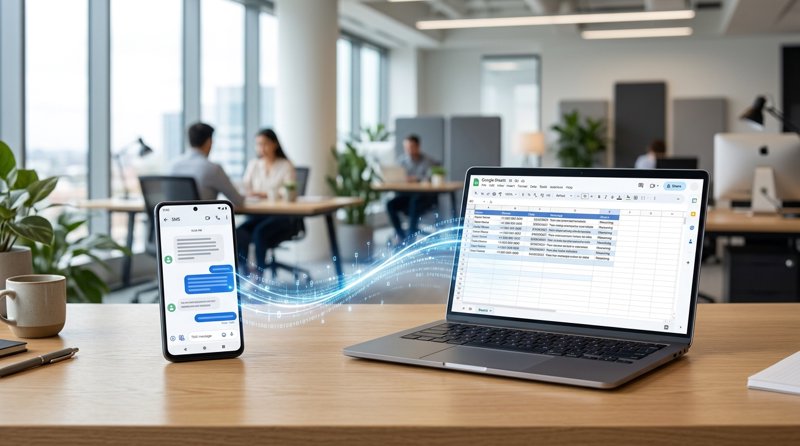
Do you want to automatically send text messages for customer reservations or order statuses managed in Google Sheets? In this guide, we will connect the 'android sms' service and 'google sheets' using MySMSGate. We will introduce in detail how to build an affordable and stable automated text messaging system using the Android smartphone and SIM card you already use, without complex carrier approval procedures.
Why Connect Google Sheets and Android SMS?
One of the biggest concerns for many small business owners—such as local clinics, hair salons, academies, auto repair shops, and gyms—is No-Shows and the hassle of customer management. Manually sending texts the day before or on the day of an appointment is a huge waste of time, and if an employee forgets, it leads to business losses.
Many businesses manage reservation data or customer lists using Google Sheets. However, trying to integrate this with existing large-scale SMS APIs or international services like Twilio presents the following barriers:
- Complex Regulations and Authentication: Requires complicated paperwork and waiting times for sender ID registration, A2P 10DLC registration, and prior carrier approval.
- Excessive Costs: You face unreasonable billing methods where costs double based on character limits (160-character segment limits) on top of expensive base rates per text message.
- Unfamiliar Sender Numbers: Messages are often sent from web-originated numbers or 070 numbers that customers don't recognize, making them easy to mistake for spam.
To solve these issues, you can transform your own Android smartphone into a powerful SMS gateway device and connect the 'android sms' service and 'google sheets'. Since you can send texts using the familiar number (the shop or owner's number) that customers have already saved, spam block rates are significantly lower and delivery rates are maximized.
MySMSGate: The Most Practical 'low cost sms api' Solution
MySMSGate is an innovative SaaS service that sends SMS through the SIM card installed in your device by installing a dedicated app on an Android smartphone. It provides a simple REST API for developers, as well as a web dashboard and no-code integration tools that non-developers can easily use.
The unique benefits of MySMSGate include:
- Reasonable Flat Rate: Regardless of the length of the text message, you are charged a flat rate of $0.02 per message. Unlike Twilio or Plivo, you aren't charged double or triple based on character limits.
- Zero Commitment and Fixed Monthly Costs: Recharge as much as you need starting from $5.00 (250 messages), and there are no maintenance costs during months you don't use it. As seen in the Cheapest SMS API Guide for Small Business, it is the most economical choice for small business owners.
- Immediate Sending Without Approval: You can start sending text messages from your own smartphone number immediately upon signup, without tedious carrier approvals or document submissions.
- Automatic Refund for Failed Messages: For messages that fail to send due to opt-outs or number errors, the balance is automatically and immediately refunded.
- Powerful Multi-Device and Dual SIM Support: You can connect multiple Android phones to one account to specify different sender numbers by branch, or use a phone's dual SIM to choose between personal and business numbers.
Step-by-Step Practical Guide: Connecting 'android sms' Service and 'google sheets'
Now, let's look at two ways to actually integrate MySMSGate and Google Sheets to build an automated sending system. The first is the Make.com (No-code) method, which requires no coding at all, and the second is the Google Apps Script (Low-code) method for developers or power users.
Preparation: Sign up for MySMSGate and Connect Android Phone
First, you need to register the hardware (Android smartphone) that will send the texts to the MySMSGate system.
- Go to the MySMSGate Free Signup page and create an account.
- Log in to the dashboard, and a QR code will be displayed on the screen.
- Download and install the official MySMSGate app on the Android smartphone you will use to send texts.
- Launch the app and press the 'Scan QR' button on the screen to scan the QR code from the dashboard.
- Once connected, the smartphone will appear as 'Active' on the dashboard. You are now ready!
Method 1: No-code Integration Using Make.com (Highly Recommended)
Without writing a single line of code, you can set up automated text sending whenever a new row is added to Google Sheets via Make.com (formerly Integromat). This is also the perfect answer to the search query 'comment envoyer des campagnes sms sans utiliser de code?' (how to send SMS campaigns without using code?).
- Log in to your Make.com account and create a new Scenario.
- Select Google Sheets (Watch Rows) as the first module and specify the spreadsheet and sheet name to integrate.
- Add HTTP (Make a request) as the second module.
- In the HTTP configuration window, enter the following:
- URL:
https://mysmsgate.net/api/v1/send - Method: POST
- Headers:
Authorization: Bearer [API Key issued by MySMSGate] - Body Type: Raw (application/json)
- Content:
{
  "to": "{{Phone number column mapped from Google Sheets}}",
  "message": "Hello, {{Customer Name}}! Your reservation has been confirmed."
}
- URL:
- Once you activate the scenario, text messages will now be automatically sent through your Android phone in real-time whenever new customer information is entered into Google Sheets.
Method 2: Direct Integration Using Google Apps Script
Instead of using an external automation platform, you can call the API directly using 'Apps Script', a built-in feature of Google Sheets. You can perform deeper customization by referring to the developer-friendly Android SMS Gateway Integration Guide.
Click Extensions > Apps Script in the Google Sheets menu, delete all existing code, and copy and paste the simple yet powerful script below.
function sendSMSFromSheet() {
  var sheet = SpreadsheetApp.getActiveSpreadsheet().getActiveSheet();
  var data = sheet.getDataRange().getValues();
  var apiKey = "YOUR_MYSMSGATE_API_KEY"; // Enter API Key issued from MySMSGate dashboard

  // Assuming the first row is the header (Name, Phone Number, Message, Status), iterate from the 2nd row.
  for (var i = 1; i < data.length; i++) {
    var customerName = data[i][0]; // Column A: Customer Name
    var phoneNumber = data[i][1];  // Column B: Phone Number
    var message = data[i][2];      // Column C: Message Content
    var status = data[i][3];       // Column D: Sending Status (e.g., "Pending")

    if (status === "Pending") {
      var payload = {
        "to": phoneNumber,
        "message": message
      };

      var options = {
        "method": "post",
        "contentType": "application/json",
        "headers": {
          "Authorization": "Bearer " + apiKey
        },
        "payload": JSON.stringify(payload),
        "muteHttpExceptions": true
      };

      try {
        var response = UrlFetchApp.fetch("https://mysmsgate.net/api/v1/send", options);
        var responseData = JSON.parse(response.getContentText());

        if (response.getResponseCode() == 200) {
          sheet.getRange(i + 1, 4).setValue("Sent");
        } else {
          sheet.getRange(i + 1, 4).setValue("Failed: " + responseData.message);
        }
      } catch (e) {
        sheet.getRange(i + 1, 4).setValue("Error: " + e.toString());
      }
    }
  }
}
This script finds rows where the status in Column D is 'Pending', sends a text via the MySMSGate API, and updates the status to 'Sent' upon success. It is very convenient as you can set it to run every hour or automatically when the sheet is edited via trigger settings.
Comparison: Existing International SMS Services vs. MySMSGate
The reason many small business owners and developers choose MySMSGate over existing platforms like Twilio or Plivo is clear. Check the comparison table below for an intuitive look.
| Comparison Item | Existing International SMS API (Twilio, etc.) | MySMSGate (Android SMS) |
|---|---|---|
| Cost per Message | $0.05 ~ $0.08 + extra charges for exceeding char limits | $0.02 (Flat rate) |
| Fixed Monthly Cost | Virtual number maintenance and monthly base fees | None ($0, no commitment) |
| Sender Number | Numbers like 070 that are likely to be mistaken for spam | Your actual Android phone number |
| Regulations & Approval | A2P 10DLC registration, complex carrier reviews needed | Immediate sending possible without approval |
| Refund for Failures | Mostly non-refundable (charged per attempt) | Immediate automatic refund on failure |
| Incoming Messages (Inbox) | Requires additional costs and complex webhook setup | Free real-time receiving and replying on dashboard |
Frequently Asked Questions (FAQ)
We've gathered the most frequently asked questions about integrating Google Sheets and Android SMS.
Is there a limit to the number of SMS messages I can send per day?
MySMSGate itself does not limit the number of messages sent. However, since you are using your own Android phone's SIM card, you must follow your carrier's daily text limit (generally around 500 per day for domestic carriers, subject to anti-spam policies). This quantity is sufficient for daily notifications or reservation confirmations for actual customers, rather than bulk promotional spam.
Can I check customer replies and chat on a computer screen?
Yes, you can. Using MySMSGate's 'Web Conversations' feature, you can check customer replies in real-time on your browser as if using a messenger and send replies right there. All customer communication can be handled perfectly on the PC screen without needing to take your phone out of your pocket.
Can I send text messages to customers abroad?
Yes, messages can be sent to numbers in any country worldwide. While the MySMSGate cost is the same at $0.02 per message regardless of the country, since the actual text is sent via the user's Android phone SIM card, you should check if your carrier plan includes international SMS permissions and costs.
Does sending stop if the Android phone enters Sleep mode?
MySMSGate is equipped with an Auto Wake-up feature utilizing powerful push notification technology. Even if the smartphone is in power-saving or sleep mode, it wakes the device immediately upon an API request to send the text safely and without delay.


Comments (4)